For a Generative AI powered app development experience, see Build an app with Freddy AI Copilot for Developers.
Notes:- Most of the steps in this section require you to use the appropriate developer tool to craft your app.
- Apps built to work on the Freshworks platform are compatible with the latest and immediately preceding version of the following browsers: Google Chrome, Firefox, Edge, Safari
- Install prerequisites.
- Install the FDK + CLI.
- Create an app.
- Build the app.
- Test the app.
- Validate and pack the app.
- Submit the app.
Install prerequisites
The FDK is a Node.js application. Before you install or use the FDK, install the following components on your system.
- Node Version Manager/NVM (Optional)
- Node.js v24.11.x.
Note:If Node.js v24.11.x or later is installed already on the system, skip this section and proceed with the FDK installation via NPM step.
There are following two methods to install the prerequisites.
Use this method to install Node.js v24.11.0 and the FDK together on your system via Homebrew (on MacOS and Linux).
Note:If you already have Homebrew installed on your system, skip this section and proceed with the FDK installation step. Otherwise, refer to the following information on installing Homebrew.
- For MacOS or Linux: Install the latest version of HomeBrew.
Install the FDK + CLI
Based on the installation information provided in the prerequisites section, refer to the steps in the following tabs to install FDK.
Notes:- If you already have the FDK v9.0.0 or later, and Node.js v18.13.0 or later installed on your system, you can skip this step and proceed to create an app.
- If you already have Node.js v18.13.0 or later installed on your system, refer to the information available in the via NPM tab to install FDK.
Run the following command to enable Homebrew to access the Freshworks CLI repository and auto-configure the CLI.
brew tap freshworks-developers/homebrew-tapRun the following command to install the latest CLI version.
brew install fdkThis command performs the following tasks:
Creates the custom_node_location folder in your system.
Note:The terminal displays the location where the custom_node_location folder is created.
Installs Node.js version 24.11.0, compatible with the CLI, into the custom_node_location folder.
Installs the Freshworks CLI in the same custom_node_location folder.
Add the following command to the appropriate environment file (.bash_profile, .bashrc, or .zshrc) on your system. This command loads the necessary settings required for using the CLI commands.
source "$(brew --repository freshworks-developers/homebrew-tap)/path.bash.inc"Apply the changes made to the environment file in the current terminal by either closing and reopening the terminal or by running the source ~/.{file_name} command. For example, source ~/.bashrc.
Run the following command to verify the CLI installation.
fdk versionEnsure that the installed CLI version is 10.0.0 or later.
- To uninstall the currently installed CLI version, use the brew uninstall fdk command.
- After uninstalling the CLI, to remove the CLI repository from the list of tapped repositories in your Homebrew configuration, use the brew untap freshworks-developers/homebrew-tap command.
- The Developer portal and SDK Terms of use apply to the use of the CLI.
Create an app
From the command-line, navigate to the empty directory in which you want to create an app.
Run the fdk create command. A prompt to choose a template is displayed.
Select common-starter-template. A new app with the following directories/files is created based on the template.
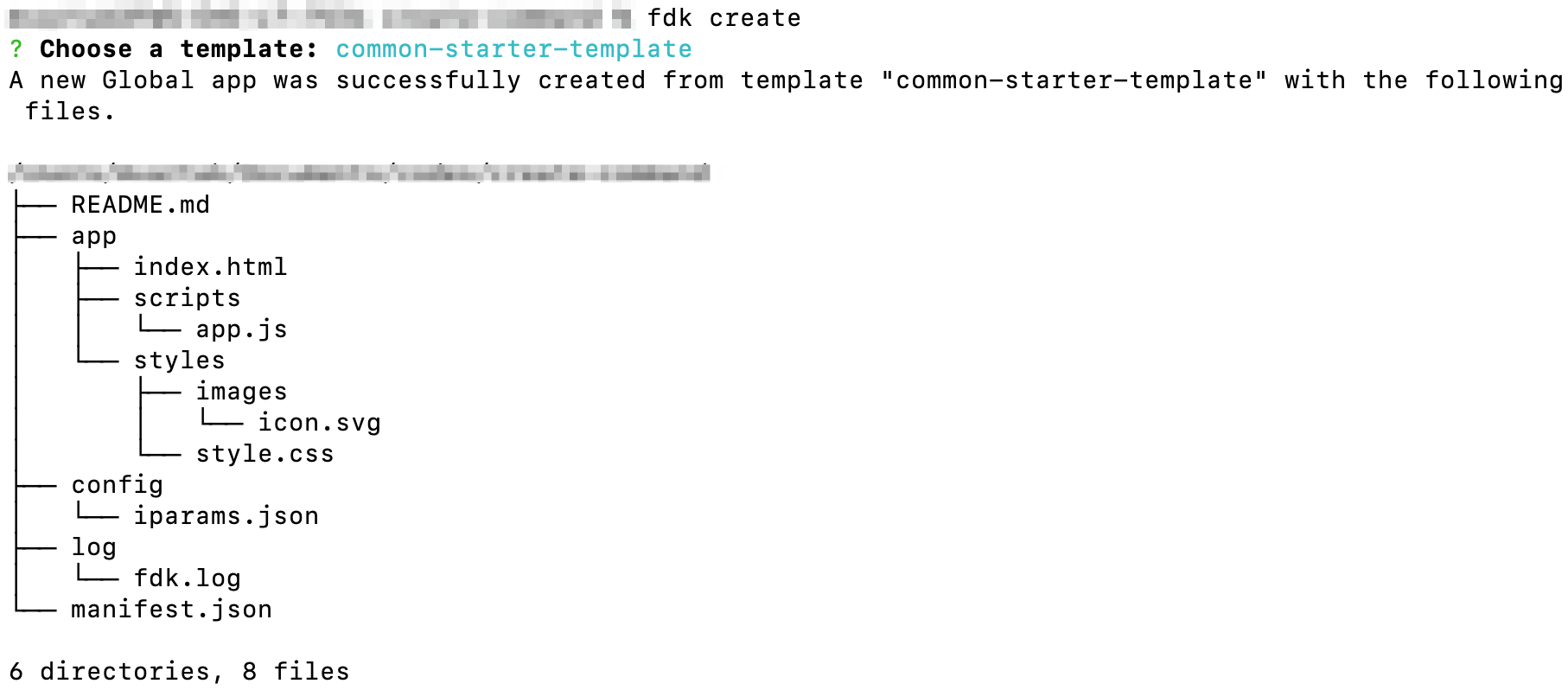 Directories and files that the create command generates for common-starter-template
Directory/File Description Important:When building an app, do not modify the default folder/file names. app/ Contains all the files required for a front-end app or the front-end component of an app. app/index.html Contains files to render the front-end components of an app. This is the first page that is loaded when the app is activated. When building an app, if the app uses Data method, Request method, Installation settings, or Data store, update the index.html file with the following client JS resource: <script async src="{{{appclient}}}"></script>app/scripts
(All js files are ES6 compatible)Contains all the javascript files required to support the front-end functionality of an app. app/scripts/app.js Placeholder file for your app logic (app code). app/styles Contains the styles required for the front-end components of an app. app/styles/styles.css Contains CSS rules that are incorporated to HTML files, when referenced. app/styles/images Contains images that can be used in the app. app/styles/images/icon.svg Contains the app icon. If you intend to extend the app, you can replace the icon.svg file. The icon file should be of SVG type with a resolution of 64 x 64 pixels. config/ Contains the installation parameters and OAuth configuration files. config/iparams.json Specifies all the installation parameters whose values are set when the app is installed. For more information, see App settings. log/ Contains the files in which the app debugging information is captured. log/fdk.log Contains all debugging information, warnings, and errors generated when an app is created, run, packed or validated. manifest.json Contains details such as the platform version the app uses, module on which the app is deployed, placeholders for the front-end app rendering, request templates that the app code uses, and FDK version used to build, test, validate, and pack the app. README.md Contains additional instructions, information, and specifications. Note:To ensure quick app reviews, if you use React or any other front-end framework, include the source files of your app in the src directory (which is auto-created when you use fdk create and select react-starter-template to create your app files).
Build the app
Important:After you build a global app that works across modules and publish it to our marketplace, in the subsequent versions of the app, you cannot remove modules (that is, downgrade the number of modules).
After creating the default front-end app files, to build the app,
Implement your app logic.
Navigate to app.js and code your app logic.
Use our front-end methods to formulate your app logic.
For your app to react to app initialization, activation, or deactivation, use the appropriate app lifecycle methods.
For your app to retrieve the information about the different objects on the product UI and use the information to process the app logic, use the appropriate data method.
- For your app to react to the events (such as button clicks or changes/updates to field values) that occur on the product UI, use the appropriate event methods.
- For your app to trigger certain actions on the product UI, use the appropriate interface methods.
Use our developer toolkit to help solve specific requirements of your app.
To use external libraries, use our provision to include external libraries into your app files.
To place secure http calls from your app to a third-party domain, use the request method.
To enable communication between the various instances of your app, use the instance method.
To enable your app to access third-party resources that require an OAuth authentication, use the provision to place OAuth requests.
To persist and use data throughout your app’s lifecycle, use our data storage tools.
Use our app UI guidelines or Crayons (the Freshworks component library) to construct your app’s UI.
Test the app
Since custom modules are configured differently for an account, rendering the front-end app on custom modules through local testing is not supported.
To test the app, you need to validate, pack, and publish the app as a Custom app.
Validate and pack the app
To validate the app code for errors and pack the app for submission:
Notes:- In the following procedure, <DIR> is the directory path to the folder containing the app files that are validated for errors or packed.
- Ensure that at least one module apart from the common module is registered in the app manifest.
- A front-end app built for the common module is accessible from a product’s left navigation pane - either from the full-page-app placeholder or CTI app placeholder. For a front-end app built to work with only the common module, do not include caller_agent, call, caller_metrics, notification, chat_conversation, or chat_user as the other module(s), if they are the only modules other than common. This is because the products that support these modules do not support app deployment on the left-navigation pane.
- Ensure that the iparams.json > <iparam-name>.modules contains only modules that are registered in the app manifest.
- If you are a developer who has been building apps for our ecosystem in the product-based landscape and migrating to the module landscape, when configuring iparams, ensure not to use the domain, api_key iparam types and the corresponding type_attributes. You can use the text type to obtain the domain value from your app users.
From the command line, navigate to the directory that contains the app related files and run the following command.
fdk validateOr
From the command line, run the following command.
fdk validate --app-dir <DIR>If there are errors in the code, corresponding violations are displayed. Ensure to fix all violations before packing the app. Reference: App validation.
To fix all lint errors for which auto-fix support is available, run the following command.
fdk validate --app-dir -fix <DIR>To pack the app for submission, run one of the following commands.
fdk packfdk pack --app-dir <DIR>A dist/<app_directory>.zip file is generated.
Submit the app
To publish the app to the Freshworks Marketplace, navigate to the developer portal and upload the validated and packed app file. You can use the Login button in the header of this webpage to navigate to the developer portal.
For detailed app submission steps, see App submission process.
Note:To know all the platform restrictions and constraints, see Rate limits and constraints.